
Guides
How to Use Kling 3.0: A Beginner's Guide to AI Video Creation
Plan a Kling 3.0 shot, choose the right input workflow, write and revise a prompt, and evaluate your video on Kling40.app.
By Kling40.app Editorial Team · · 8 min read
To create a video with Kling 3.0 on Kling40.app, open the generator, choose an available Kling 3.0 option in the model picker, select a supported creation mode, enter your prompt, review Output settings and the credit amount beside Generate, then submit. Play the result before changing your prompt. The cyclist prompts below are teaching examples; the portrait video later in this guide includes its original generation prompt.
What Is Kling 3.0?
Kling 3.0 is a model series announced by Kuaishou in February 2026, including Video 3.0 and Video 3.0 Omni. This guide describes the creation workflow available on Kling40.app; the controls you see depend on the model and workflow you select. See the official Kuaishou source linked below for provider announcements.
What You Need Before Starting
Start with a shot that can be described in one sentence. Decide who or what the viewer should follow, what changes during the shot, and where the camera is. If a particular person, product, or composition must be recognizable, prepare an image you have the right to use and choose an image workflow that accepts it. If you want the model to invent the scene from words, start with a text workflow.
The model picker can offer Kling 3.0 alongside separate Turbo and Omni options. Available options can depend on site configuration or account access. Pick the model first: the creation-mode menu then shows the input modes supported by that selection. Some reference modes may be locked. Read the visible controls before uploading media or spending credits.
Step-by-Step Workflow
- Choose a model and mode. Open the generator, use the model picker to select an available Kling 3.0 option, then open the creation-mode menu. Choose Text to Video to start from words or Image to Video to animate a starting image. Other modes, such as First / Last Frames or Reference to Video, appear only when supported and may require access.
- Plan one shot. Write down the subject, its action, the setting, and the camera movement. A single main action makes it easier to judge whether the output follows your intent.
- Enter the prompt. Put the subject and action first, then the camera and lighting. Describe visible details instead of an abstract quality word such as “cinematic” on its own.
- Add media where supported. In Image to Video, add a starting image. Use First / Last Frames only if that mode is offered for the selected model. Check that the chosen image and intended framing suit your output format.
- Open Output settings. Review the available Video Duration, Output Resolution and Aspect Ratio controls. The options vary by model and mode. Check the model, input media and prompt again, then read the credit amount displayed beside Generate.
- Generate and inspect. Select Generate. When the result is ready, play the full video, including the first and last frames. Check subject consistency, action, camera path, unwanted objects and framing.
- Revise one cause at a time. Save the first output and prompt. Change a specific instruction, generate again, and compare both versions. If several instructions change together, it becomes harder to learn which one mattered.
How to Write Better AI Video Prompts
The useful unit is a shot, not a list of adjectives. A practical prompt has four parts: subject → action → camera → setting/lighting. Add a consistency instruction only for a detail that matters to your scene. The following is an illustrative prompt, not a recorded generation prompt or a guarantee of output:
A single continuous shot of a cyclist riding through a misty city street at dawn. The camera tracks smoothly beside the cyclist. Soft morning light reflects on wet pavement. Keep the rider and bicycle consistent throughout the shot.
If a generated cyclist changed appearance, a possible next prompt to try would be: “Keep the rider's red jacket, silver bicycle and position on the right side of the frame consistent throughout.” That is an example of a targeted revision, not an observed before-and-after result. If the camera wandered instead, keep the subject description and replace only the camera sentence with: “Fixed side-tracking camera at the cyclist's speed; no cuts or orbit.” Compare the outputs yourself, since prompt adherence can vary.
For image-to-video, describe what should move in the supplied image rather than redescribing every visible object. For example: “The person turns toward the window while the camera slowly pushes in; keep the face and clothing consistent.” This is also an illustrative prompt.
How to judge the first result
| Check | Question to ask | Next change to consider |
|---|---|---|
| Subject | Does the main person or object stay recognizable? | Specify only the identity details that drifted, or try a suitable image input. |
| Action | Does the intended action happen clearly? | Replace vague verbs with one observable action. |
| Camera | Is the viewpoint stable and intentional? | Request one camera move rather than several competing moves. |
| Composition | Is the important subject visible in the needed crop? | Reposition the subject in the prompt or change the input image/crop. |
| Continuity | Do unwanted cuts or new objects appear? | Ask for one continuous shot and remove conflicting scene changes. |
These are review questions and suggested experiments, not measured fixes. Keep the original video and prompt so you can tell whether the next generation actually improved the issue.
Kling 3.0 Video Example: Cinematic Portrait
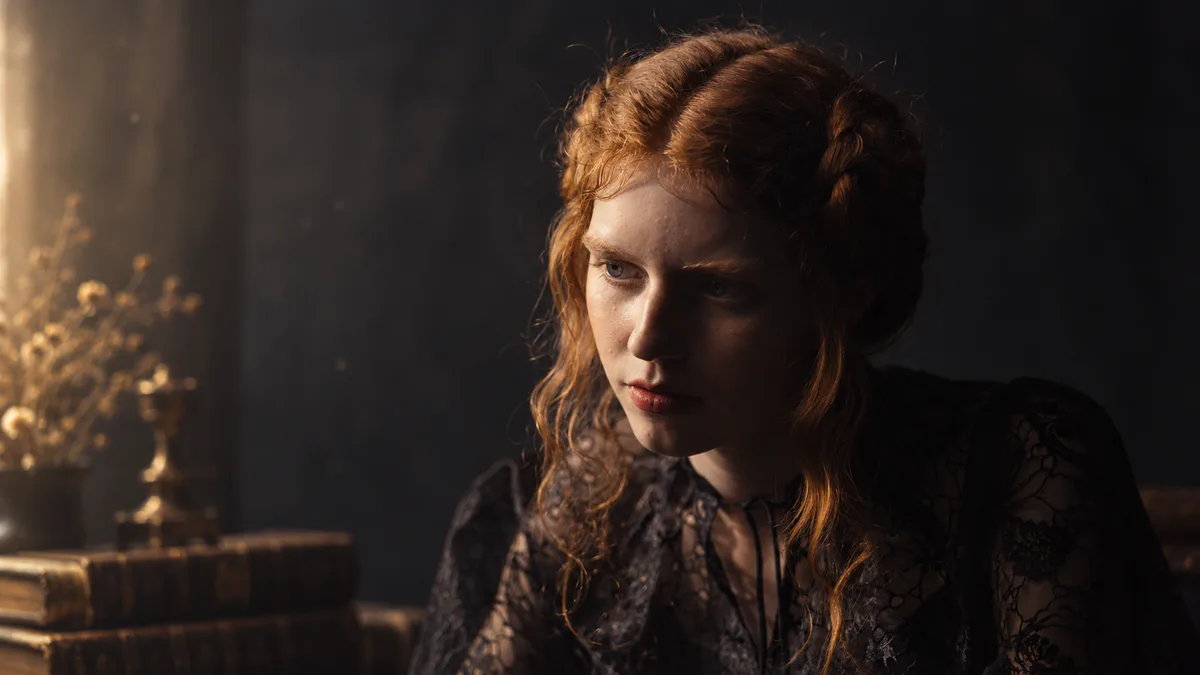
This clip is from the homepage showcase. The site owner confirms it was made with Kling 3.0 and that the prompt below is the original generation prompt. To try this shot, open the homepage, find Cinematic Portrait under AI Video Prompts & Examples, and select Use this prompt. The homepage generator automatically fills in the prompt and loads the example image. Select Kling 3.0, review the settings shown, and generate your own version; results may vary between runs.
As you watch, notice how the subject's expression and camera movement shape the portrait. You can use those elements to plan your own shot. The original prompt below describes the intended subject, motion, camera and visual constraints.
Cinematic Portrait
A subtle portrait with controlled expression and camera movement.
- Model:
- Kling 3.0
Recorded original prompt
A single continuous cinematic close-up of the red-haired woman in the reference image, seated in a dimly lit vintage room. She begins with her gaze slightly lowered, looking thoughtful and melancholic. She slowly raises her eyes toward the camera, gently lifts her chin, and reveals a subtle expression of quiet determination. One natural blink, soft breathing, and delicate facial micro-expressions bring her to life. The camera performs a very slow, smooth dolly-in toward her face. Warm golden side lighting softly illuminates her eyes and natural skin texture, while the dark background remains stable. Preserve her exact facial identity, auburn hairstyle, black lace clothing, and original composition. Photorealistic human motion, expressive eyes, realistic skin details, cinematic shallow depth of field, premium historical drama cinematography. One uninterrupted shot. No cuts, no dialogue, no exaggerated expressions, no sudden head movements, no facial distortion, no flickering.
How the original prompt relates to the video
- Expression and action: The prompt asks for a thoughtful look followed by an upward gaze. In the clip, she lowers her eyes during the shot and looks toward the camera near the end. The change is subtle rather than a large gesture.
- Camera and lighting: The requested slow dolly-in corresponds to a gradually tighter portrait. Warm light stays on one side of her face while the background remains dark; there is no visible cut.
- Consistency: The prompt asks to preserve her face, auburn hair, black lace clothing and composition. Those details appear consistent across this short clip. Use the homepage's Use this prompt action to load the example image alongside the prompt when trying your own version.
This describes what is visible in this video. It does not show that the same prompt will produce the same result on another run.
Common Problems and Practical Tips
Subject changes unexpectedly: identify the features that changed and describe those consistently. If identity is essential, consider starting from a permitted reference image in a workflow that supports it. Regenerate and check the full clip; a prompt alone cannot guarantee identity preservation.
Motion feels chaotic: reduce the instruction to one main action and one camera move. Remove conflicting directions such as “static camera” and “orbit around the subject” in the same shot.
Image does not animate as intended: describe the desired movement and what should remain still. Check that the uploaded image and selected workflow match your goal.
Result looks good at first but fails at the end: review the entire clip, not just the thumbnail. Shorten the scene concept or simplify the action on the next attempt. Do not claim a prompt change solved the issue until you compare actual outputs.
Model Features and Current Limitations
Kuaishou's announcement describes a Kling 3.0 series; the generator offers multiple Kling-labeled choices with different input modes. A text, image, reference, or motion workflow may expose different controls and input requirements. Check the currently selected option before submitting.
Generation is variable. An illustrative prompt is a starting point, not a promise that every run will produce the same shot. If you want to compare your own attempts, save each prompt, selected model, visible settings and output before making changes.
Frequently Asked Questions
What improves when using Kling 4.0 instead of Kling 3.0?
According to Kling AI's official comparison, Kling 4.0 extends native generation from Kling 3.0's maximum of 15 seconds to up to 30 seconds. It adds control over up to 10 keyframes and supports up to 15 combined reference assets, giving creators more ways to guide longer scenes and keep subjects consistent. Kling AI also describes more stable complex motion, two-channel stereo audio with improved lip-sync, and more targeted video editing. These are announced model capabilities; the controls available to you depend on the model version and access shown in the generator.
Should I start with text or an image?
Use text when you want to explore a scene without a fixed starting composition. Use an image when a particular subject or composition matters and the selected model accepts that input. Neither choice guarantees better results; select based on what you need to control, then judge the output.
Why does my second result look different even when I edit only one sentence?
Each generation can vary. Changing one instruction makes the comparison easier to interpret, but it does not isolate every cause of variation. Keep both prompts and both videos, and describe your conclusion as an observation from those runs rather than a universal rule.
Sources, Related Tools and Next Steps
The Kuaishou announcement listed in Sources documents the Kling AI 3.0 series. Use the generator link below to check the controls currently available on this site, and save the prompt and output from your first generation before revising it.
Explore video creation with the Kling 4.0 video generator, or learn about Kling 3.0 Omni. For the model differences, see our Kling 4.0 vs Kling 3.0 comparison.
Related stories
News
Kling 4.0 Release Date: When It Launches and How to Get Early Access
The confirmed October rollout, September 28 Flash access, and what to check before trying Kling 4.0.
· 3 min read